

Quickstart
Set up your Blazelock account, create your first organization, and connect your application in a few guided steps.
Getting started with Blazelock is straightforward. After creating your account and setting up or joining an organization, you just need to create your first integration and continue with its configuration.
Registration is currently limited to approved beta users. Join the waitlist first, then complete sign-up once your access has been enabled for your email address.
Create your account
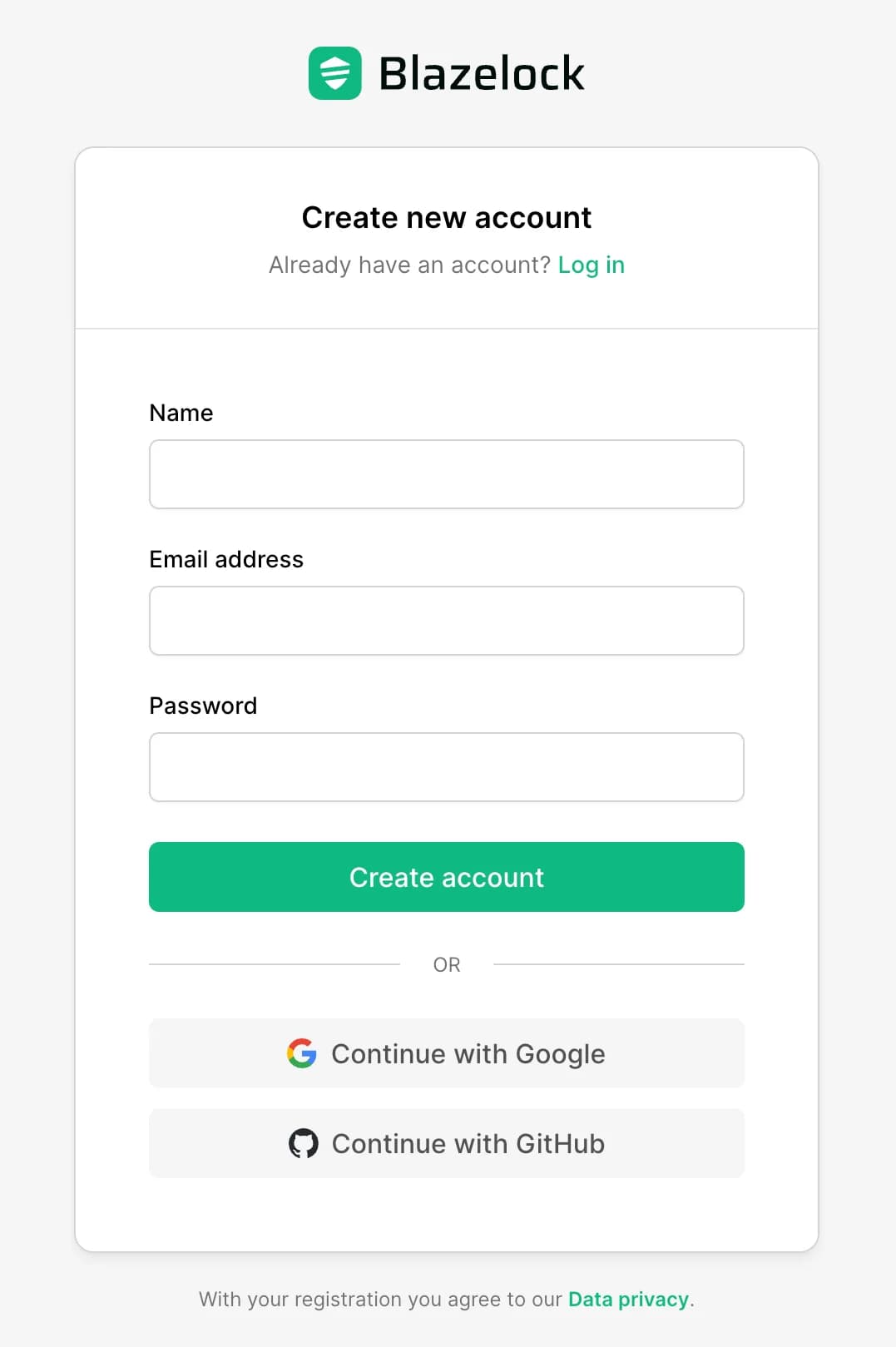
Open Sign up and create your account with the email address you want to use for Blazelock.
After submitting the form, confirm your email address with the verification code sent to your inbox. If you already received an organization invitation, use the exact same email address that was invited.
Create or join an organization
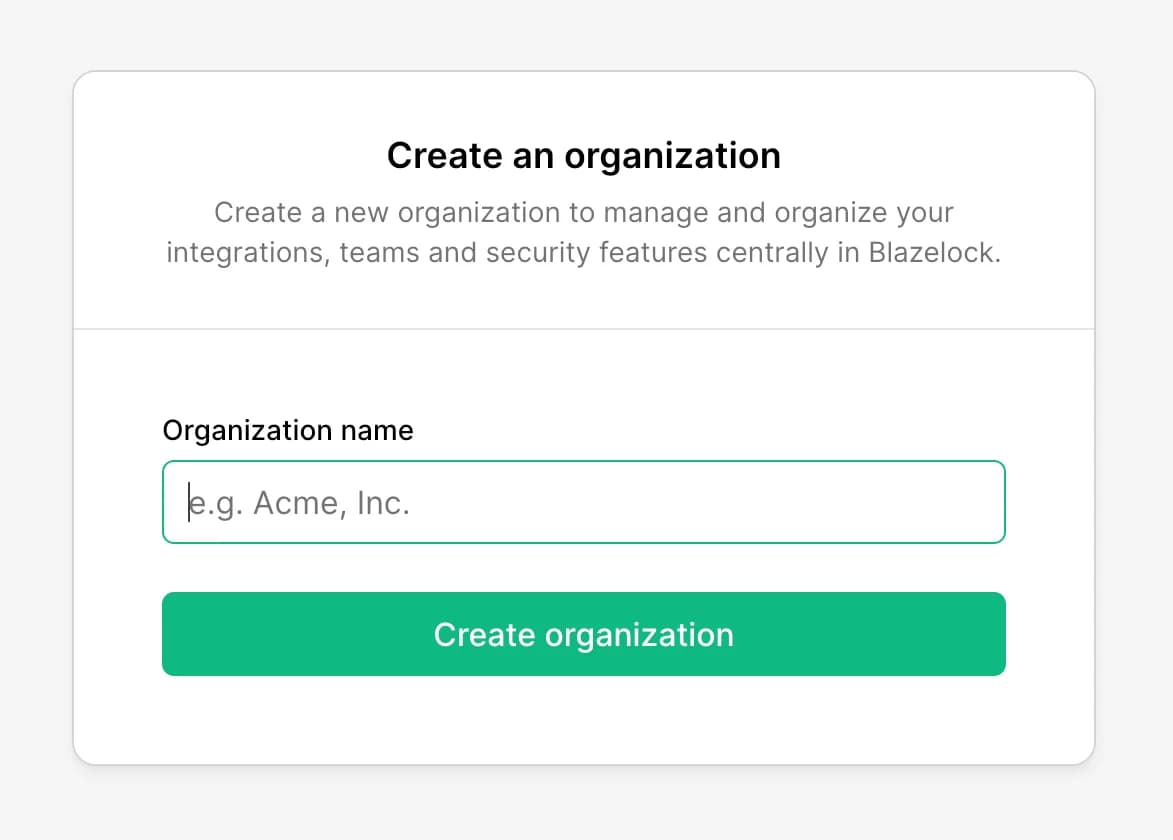
After you sign in, either create a new organization for your company or accept an invitation to an existing one.
If you are starting from scratch, Blazelock opens the initial organization setup flow directly after sign-up so you can create your first workspace right away. If a teammate invited you first, accept the invitation from the email you received and let Blazelock add you to that workspace.
For most teams, one organization is the right starting point. Create additional organizations only when you need a clear boundary between teams, business units, or billing contexts. You can learn more on Organizations.
Create your first integration
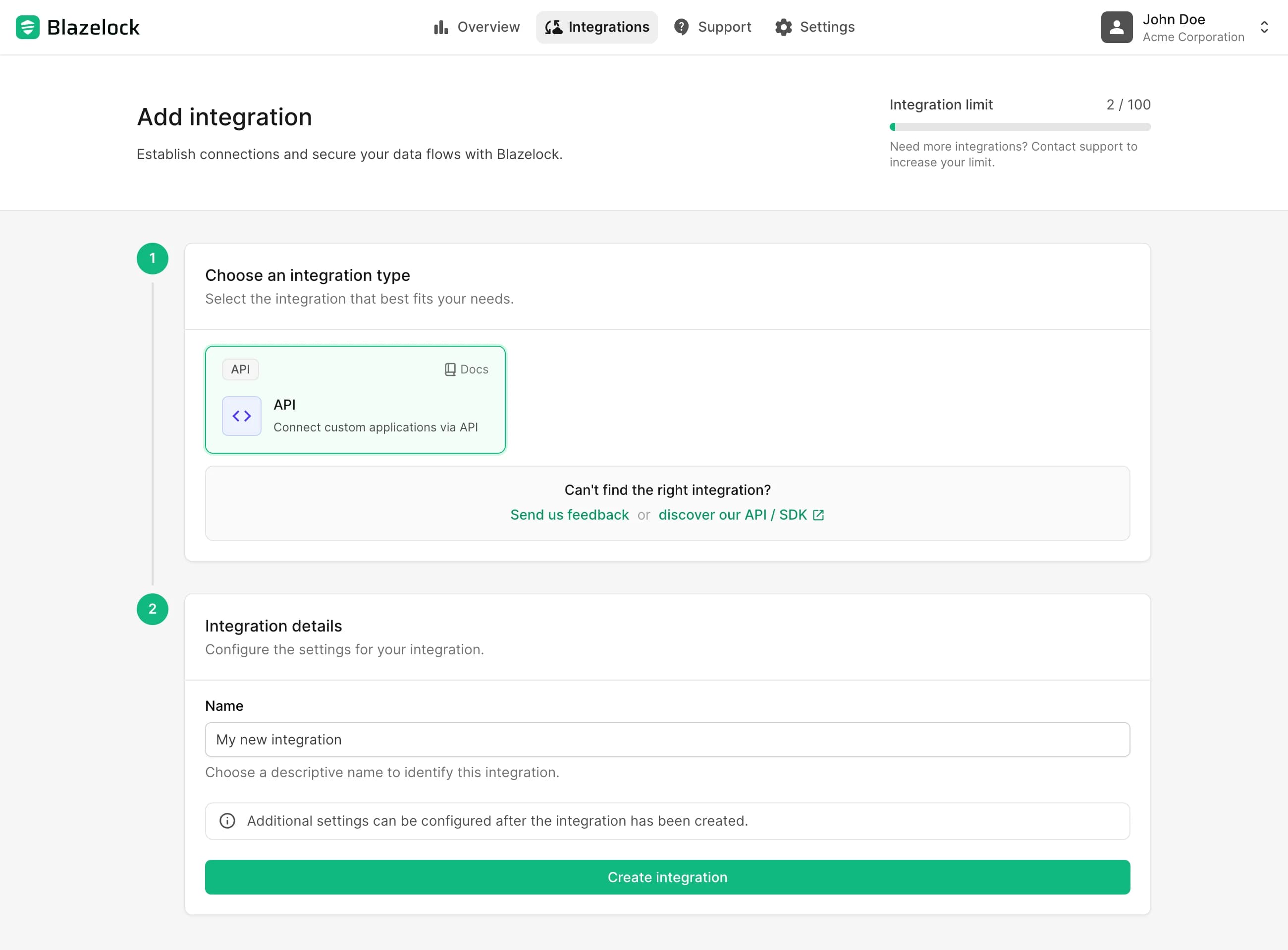
Open Integrations in the dashboard and click Add integration.
Choose the integration type that fits your use case, enter a clear name, and create the integration. Good names describe the exact system or environment you want to connect, for example Production uploads, Staging backend, or Support portal.
Blazelock opens the integration details immediately after creation. If you want more background on how integrations are structured, continue with Integrations.
Configure your integration
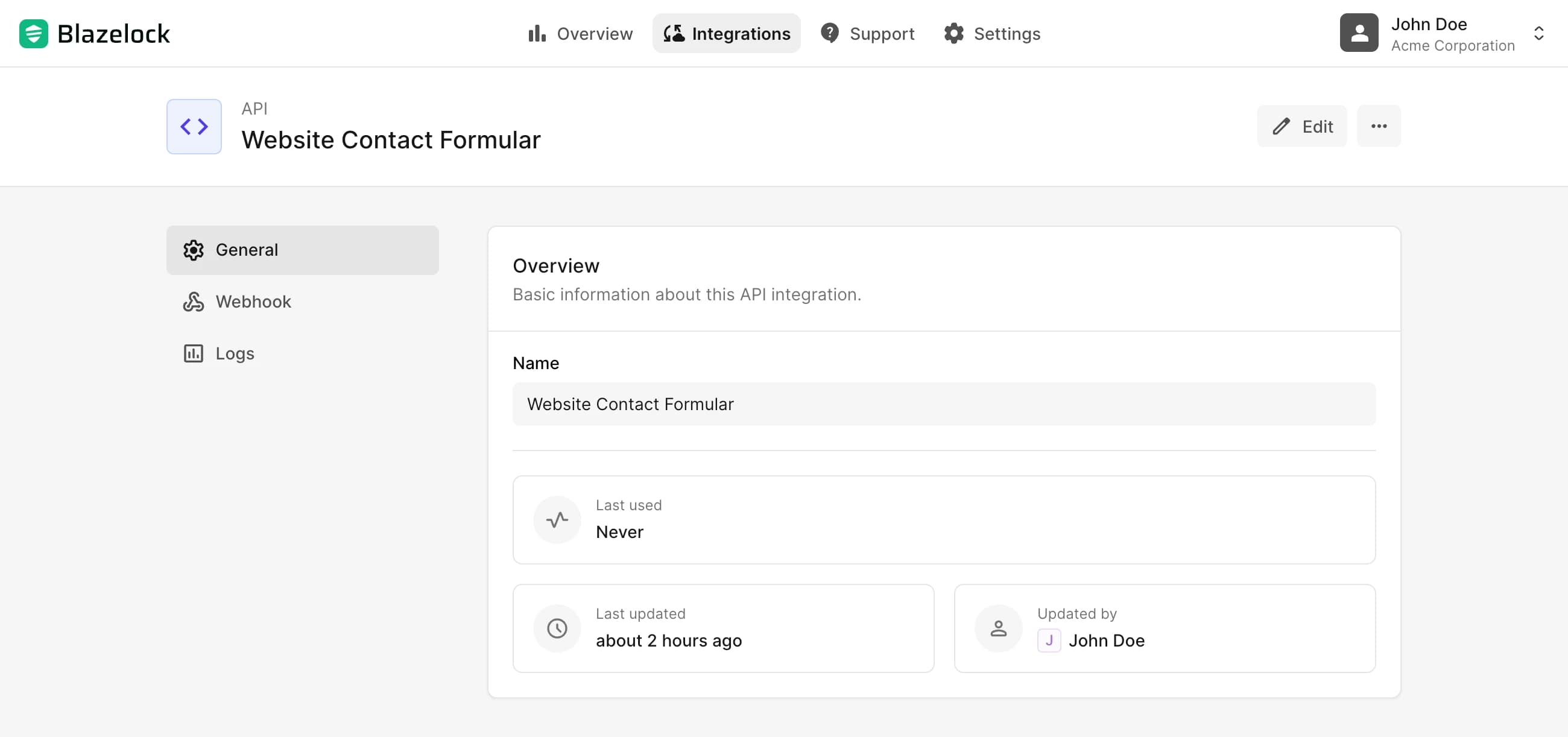
On the integration details page, complete the configuration needed for your chosen integration type. Depending on the integration, this can include credentials, endpoints, events, secrets, or other environment-specific settings.
The exact configuration steps depend on the integration type. For the API integration, the detailed dashboard flows are documented on API keys and Webhooks.
Complete your first end-to-end setup
Connect the integration to the application, system, or workflow you want to protect and validate the setup with a real end-to-end test.
Congratulations, you now have the foundation for your first Blazelock setup. From here, finish the configuration of your chosen integration, connect it to your workflow, and test the full flow end to end before using it in production.
Next steps
Understand integrations
Learn how integrations are created, structured, and managed in Blazelock.
Structure organizations
Learn how to structure workspaces and when multiple organizations make sense.
Test your setup
Validate your integration safely with deterministic test files.
Get support
Find the right support and feedback channel when you need help.