

API keys
Learn how to manage API keys for your API integration in the Blazelock dashboard.
API keys are the credentials your systems use to authenticate requests to the Blazelock API. If you want to learn how to use API keys in requests, continue with Authentication in the API reference.
This page explains how to review, create, revoke, and rotate API keys in the Blazelock dashboard.
Purpose of API keys
Every request to the Blazelock API must include a valid API key. In practice, this means your backend, worker, or other server-side system stores the key securely and sends it with each request.
Use the API reference for the technical request format:
- Authentication explains how to send the key as a bearer token
- Introduction to the API Reference is the best starting point for endpoints, schemas, and request flow
View active keys
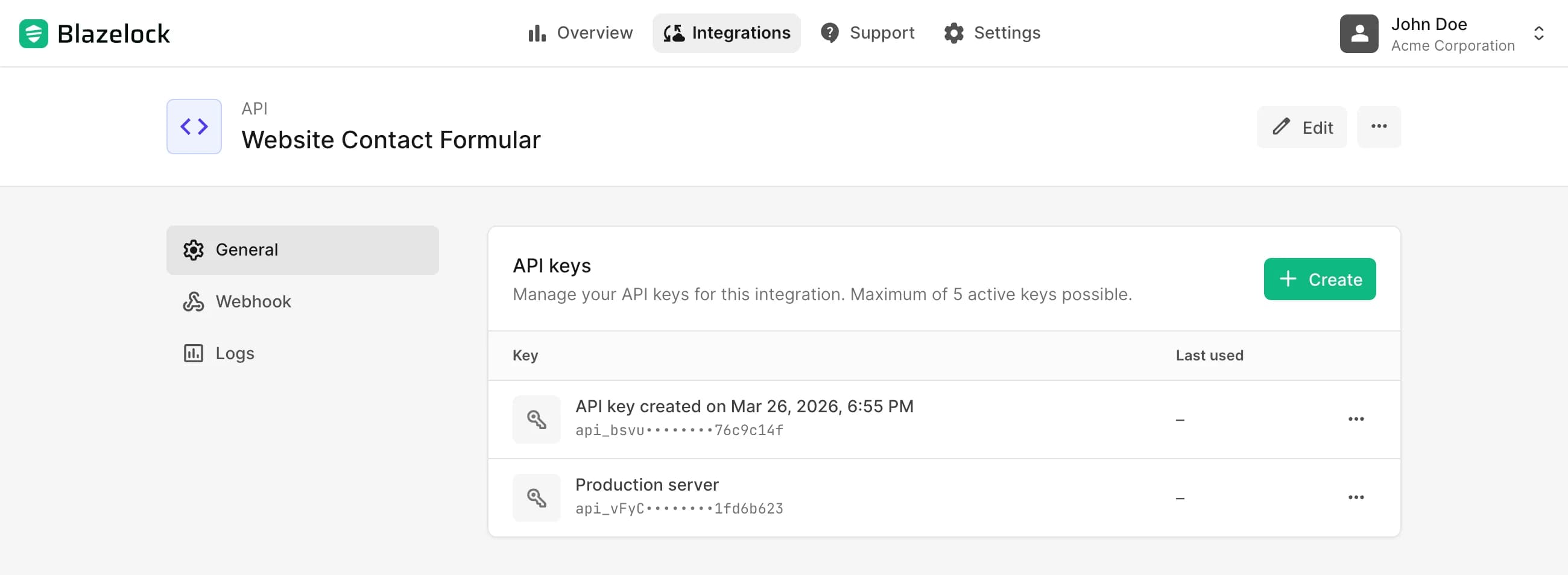
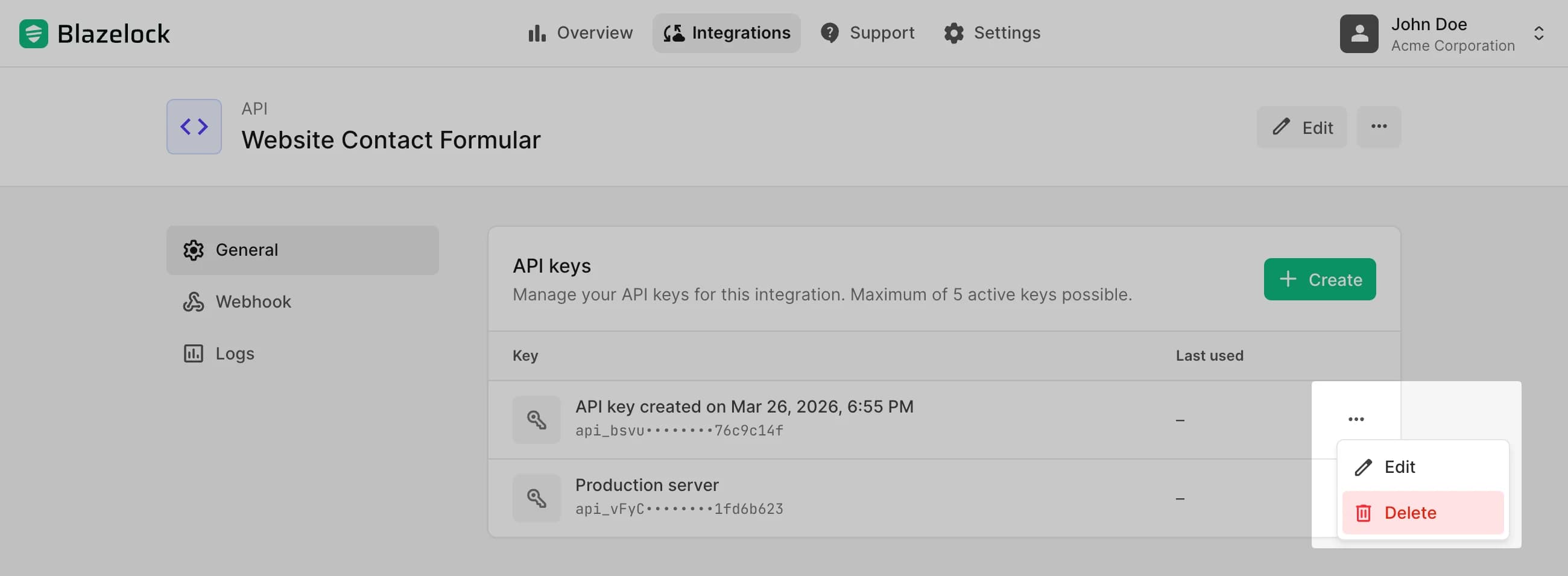
Open your API integration in the dashboard and look for the API keys section on the detail page.
The table shows the active keys for this integration. For each key, you can review:
- The human-readable description, which helps you identify where the key is used
- The masked partial key, so you can distinguish one key from another without exposing the full secret again
- The last used value, which helps you spot keys that are still in use or may already be inactive
Create a new API key
Use a new key when you connect a new service, split environments, or prepare a rotation.
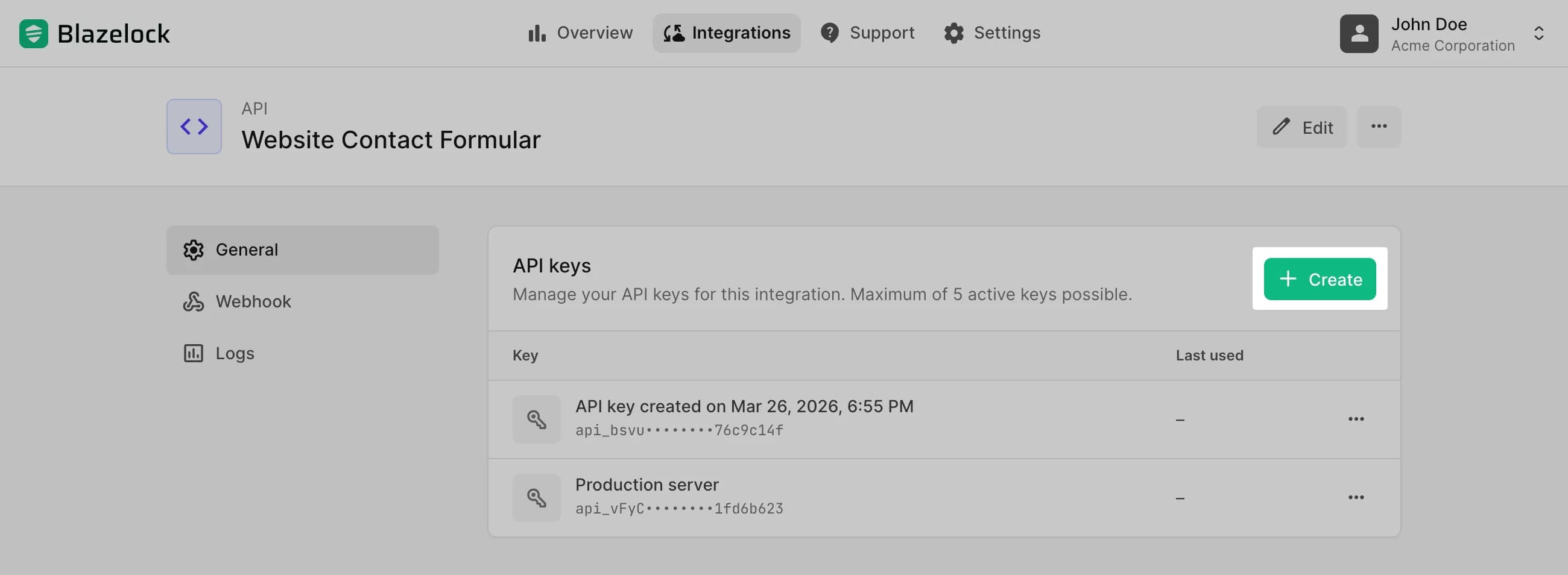
Each API integration supports a maximum of 5 active API keys at the same time. If fewer than 5 active keys exist, you can create another one from the header of the API keys section.
Open the API integration detail page and go to the API keys section.
In the header of the API keys section, click Create.
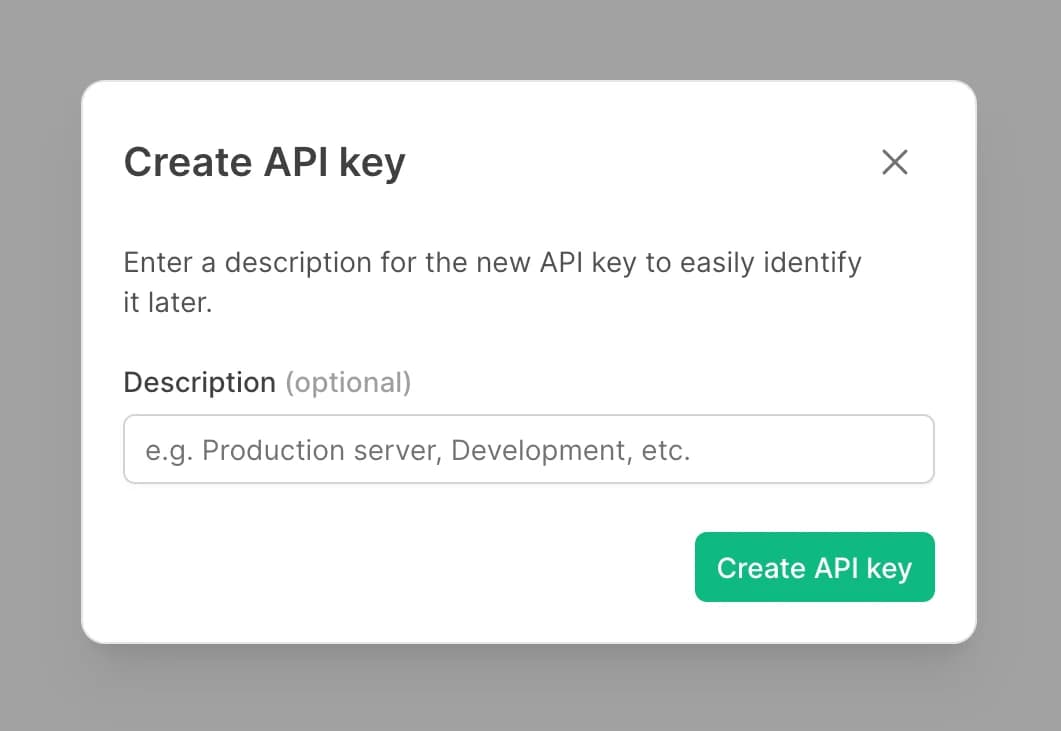
Enter a description if you want to label the key clearly.
The description is optional from a user perspective, but we strongly recommend adding one so you can recognize the key later. A clear description usually names the system or environment, for example Production backend, Staging worker, or Partner import job.
If you leave the field empty, Blazelock generates a timestamp-based description automatically.
Confirm the creation and copy the new key from the success dialog.
Store it immediately in a secure location such as your secret manager or environment configuration.
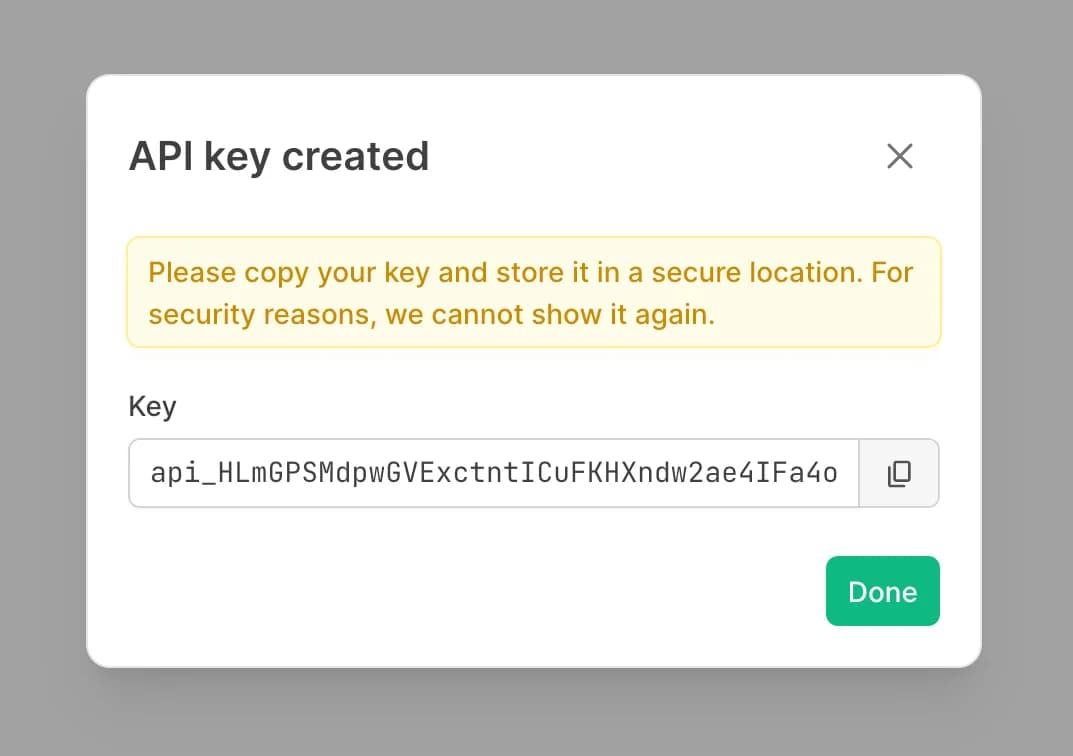
The full API key is shown only once immediately after creation. Copy it and store it securely right away. If the key is lost, you need to create a new one.
Revoke an existing API key
In the dashboard, revoking a key is done by deleting it. This invalidates the key immediately.
Any application or deployment that still uses the revoked key will start receiving authentication failures until it is updated to a different active key.
In the API keys table, open the actions menu for the key you want to revoke and click Delete.
Review the dialog carefully.
The dialog shows the description, the masked partial key, and the last-used value so you can confirm that you are revoking the correct key.
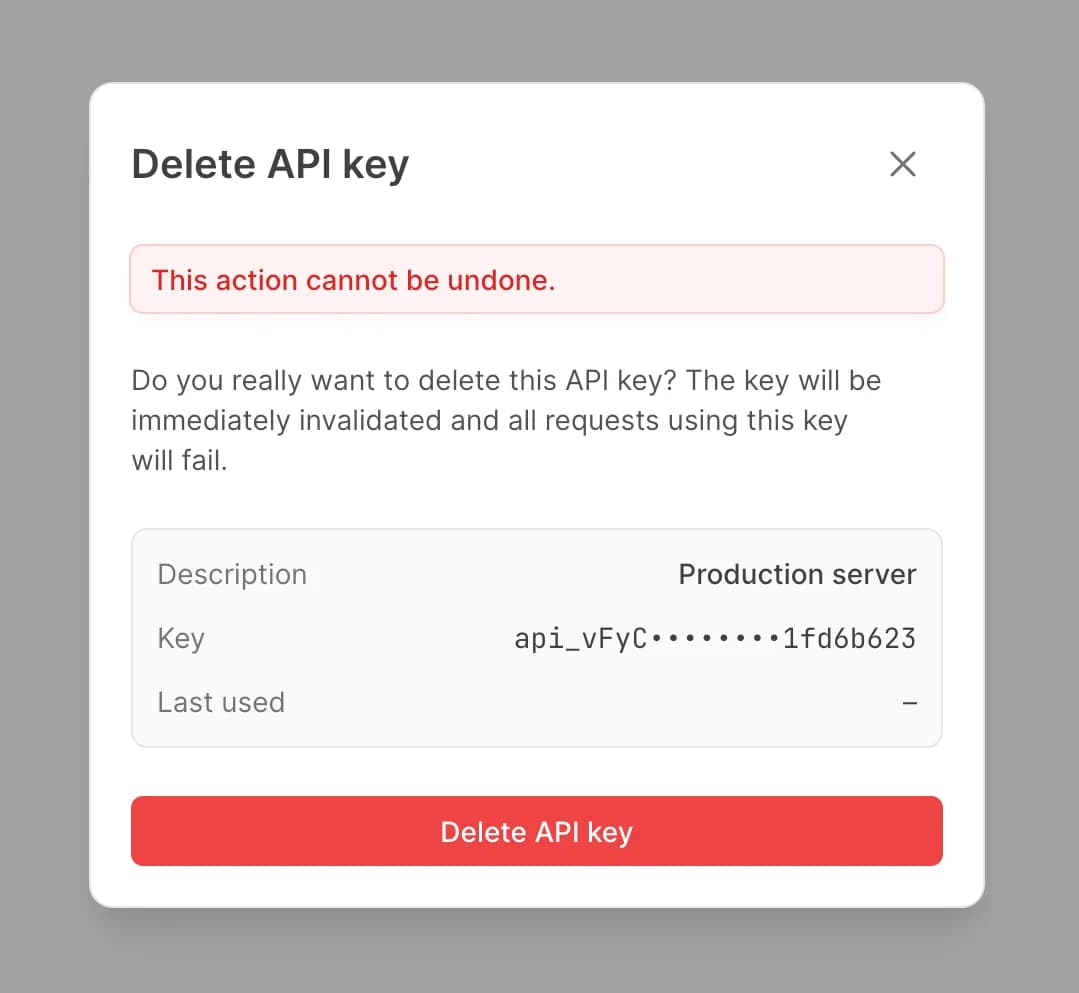
Confirm the deletion.
After confirmation, the key is immediately invalid and disappears from the active keys list.
Recommended rotation process
The recommended rotation process is straightforward:
Create a new API key in the dashboard.
Update your application or deployment to use the new key and verify that requests succeed.
Delete the old key once the new key is in use.
These practices help make rotations safer:
- Store keys in environment variables or a secret manager
- Never commit API keys to source control or expose them in client-side code
- Use separate keys for different environments or services