

Test the Scan Engine
Learn how to test Blazelock scan outcomes with the industry-standard EICAR file and Blazelock test files.
Malware scan integrations can be tested with dedicated test files that trigger either a standard malware detection or predefined scan outcomes. This makes it possible to validate application behavior, workflows, and user-facing messaging in a controlled way without using real malicious files.
Blazelock supports two kinds of test files:
- The industry-standard EICAR test file
- Blazelock test files that force predefined scan outcomes
EICAR test file
The EICAR test file is the industry-standard anti-malware test sample. It is widely used to verify that malware protection, monitoring, and downstream integrations react as expected.
Security products are expected to detect it like a known malicious sample. This makes it useful when you want to confirm that your integration correctly handles a standard malware detection scenario.
The file itself is only a small plain-text file with a standardized test string. It does not contain executable malicious code and is designed only to simulate a known detection pattern.
| File | Expected outcome | Download |
|---|---|---|
| EICAR test file | Scan completes with result infected | eicar-test-file.zip |
ZIP password: password
Your local anti-malware or endpoint protection software may flag or block the download because EICAR is a widely used industry test file. It is not real malware and should be used only for testing.
Blazelock test files
This is the recommended way to test predefined scan outcomes in a Blazelock integration.
Blazelock test files are plain-text files with predefined contents. They are designed for deterministic integration tests and are not actually harmful files.
Test file detection is disabled by default. When it is enabled and one of these files is recognized, Blazelock treats the upload as if the scan had produced the predefined outcome for that file. Otherwise, the file passes through the regular scan pipeline.
Enable test file detection
Test file detection is available for every integration type.
Open the integration details in the dashboard.
Look for the Test file detection section.
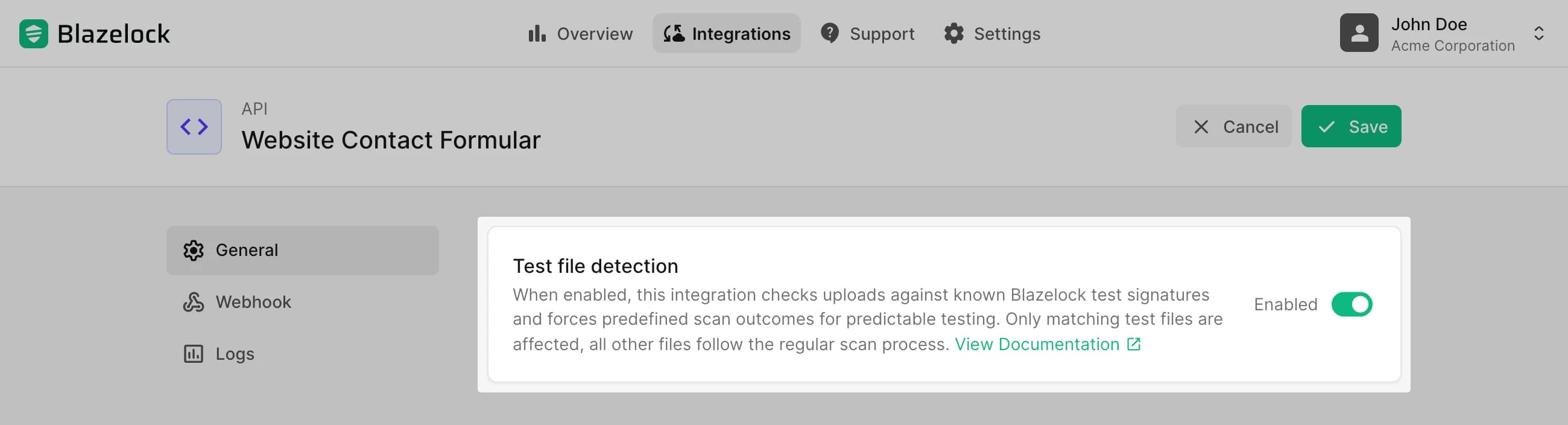
Enter the integration edit mode and enable Test file detection.
Save the change.
You can disable the feature again at any time after your tests are complete.
Available test files
| File | Expected outcome | Typical use | Download |
|---|---|---|---|
| Clean | Scan completes with result clean | Verify happy-path processing for safe uploads | blazelock-test-file-clean.zip |
| Warning | Scan completes with result warning | Verify review flows, warning states, and non-blocking escalation paths | blazelock-test-file-warning.zip |
| Infected | Scan completes with result infected | Verify blocking, quarantine, rejection, or incident handling flows | blazelock-test-file-infected.zip |
| Failed | Scan ends with status failed and error code test_file_signature_failed | Verify retry logic, operational alerting, and error handling | blazelock-test-file-failed.zip |
ZIP password: password