

Personal Account
Learn how to manage your personal account settings in Blazelock.
Your personal account settings control how you sign in, how your profile appears inside Blazelock, and how we contact you as an individual user. This page explains the available options and the related security and notification settings.
General
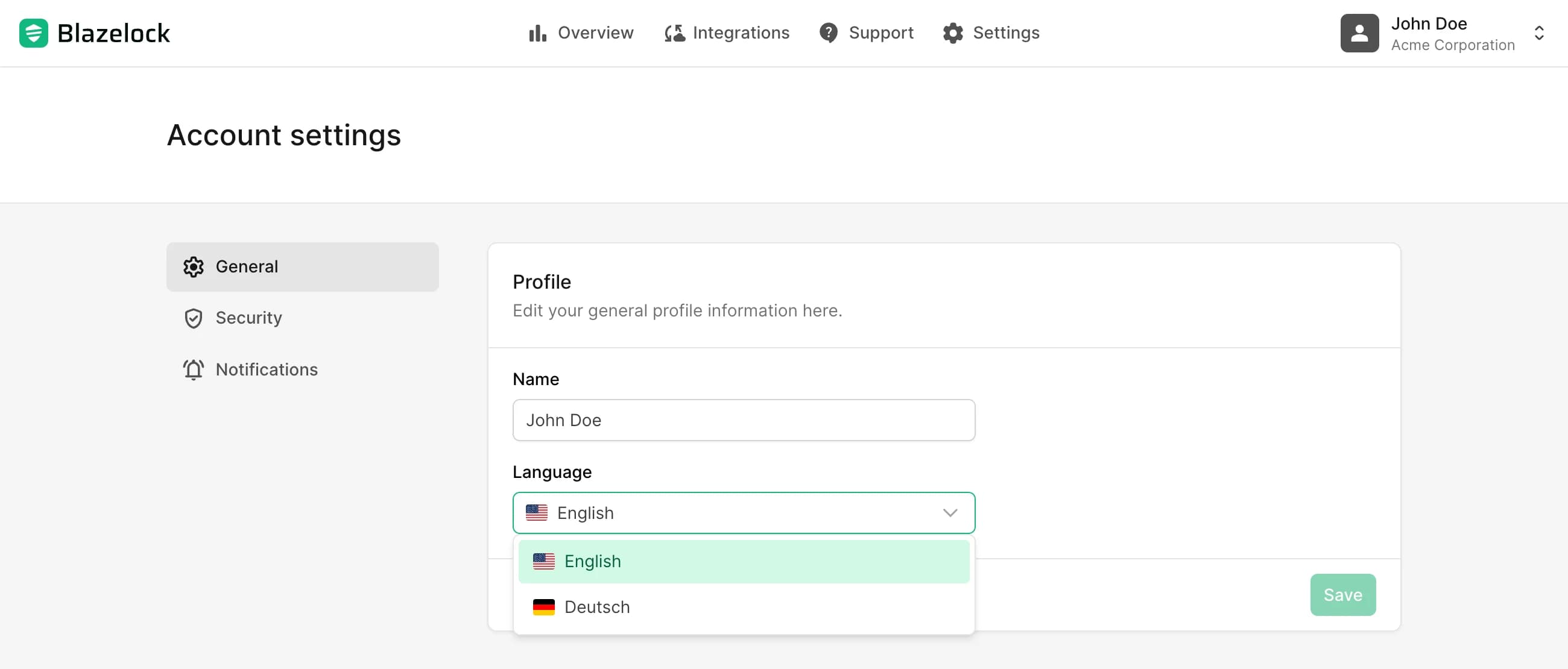
The General area lets you manage your general personal account settings.
Profile
In the Profile section, you can update:
- Your display name
- Your preferred language
After you save your changes, the selected language is applied to your account for the dashboard experience.
Change your email address
Your account email address is used for sign-in, security messages, and product notifications. To protect the change, Blazelock verifies the new address before it becomes active.
Open Account settings -> General, then enter the new email address in the E-mail address section and save the change.
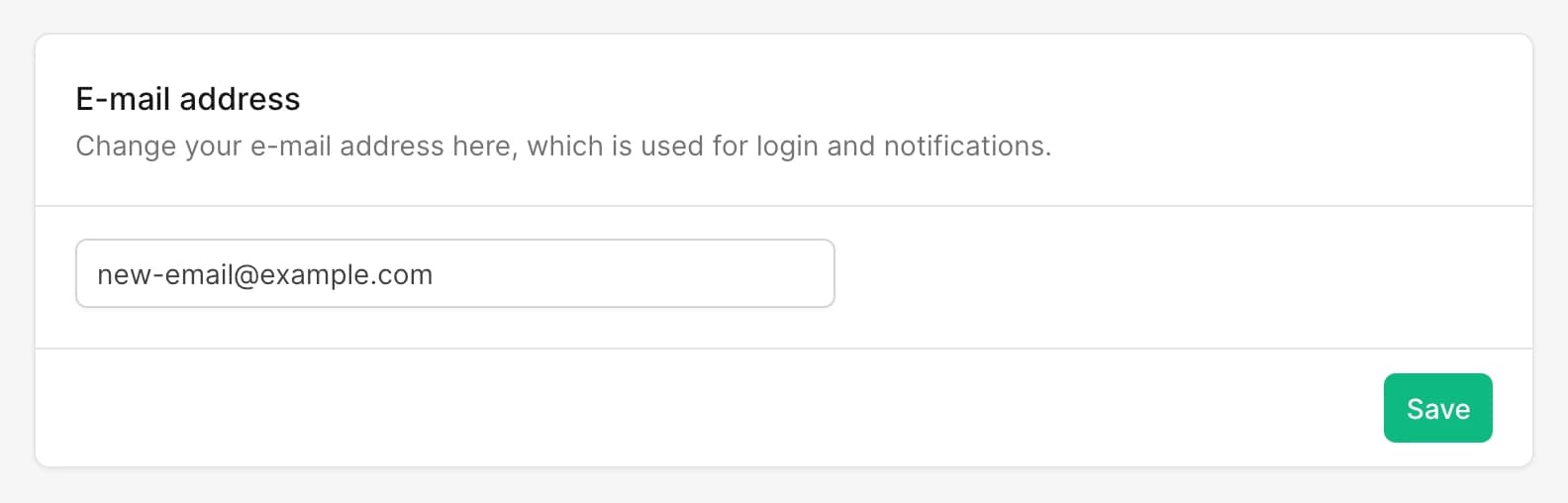
Blazelock sends a 6-digit verification code to the new email address.
Enter the received code in the confirmation dialog to complete the update.
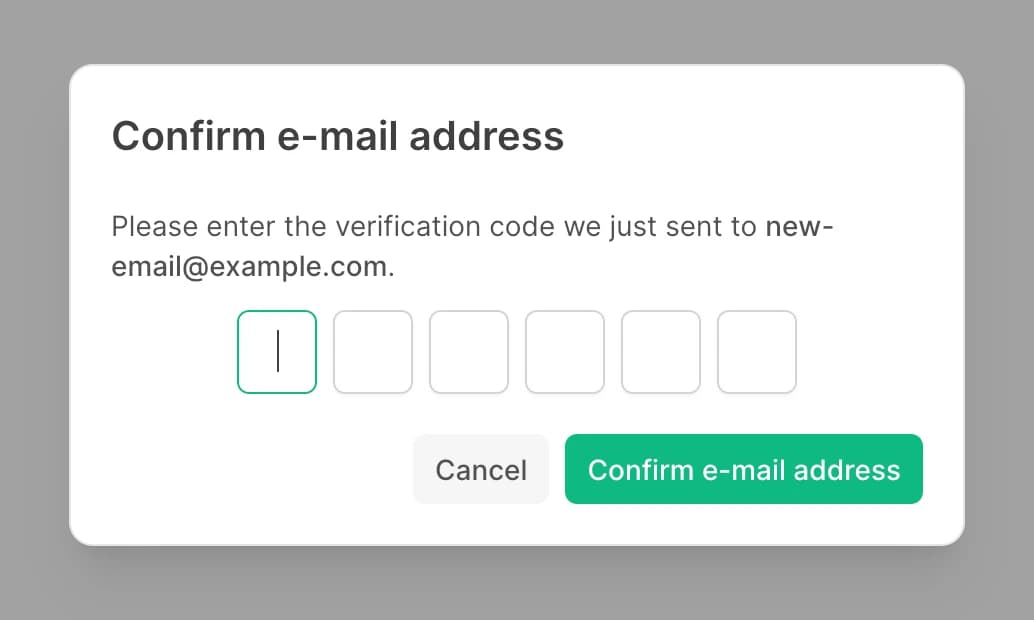
The verification code is only valid for 1 hour. If it expires, you need to start the email change again to request a new code.
After the change is confirmed, Blazelock also sends a confirmation message to the previous email address.
Security
The Security area lets you manage the security-related settings for your personal account.
Linked login methods
The Linked login methods section shows which sign-in methods are currently connected to your account. Depending on your account setup, this can include:
- Email + Password
- GitHub
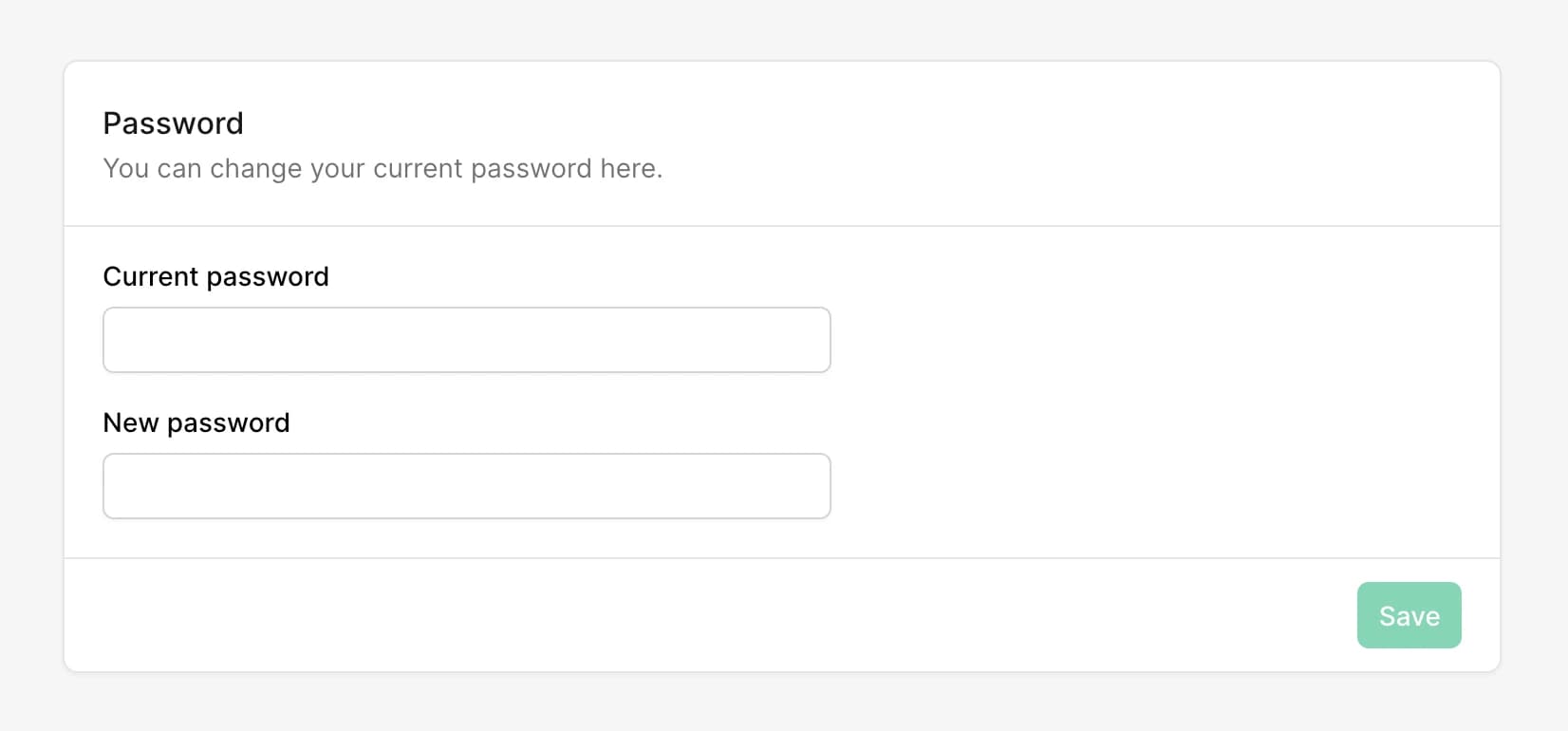
Change your password
To change your password, enter your current password and define a new one. Blazelock sends a confirmation email after the password has been updated successfully.
Use a strong, unique password, which you do not use in any other system.
Two-factor authentication
Two-factor authentication (2FA) adds an extra verification step to your login. After entering your password, you must also confirm access with a 6-digit code from your authenticator app.
Enable two-factor authentication
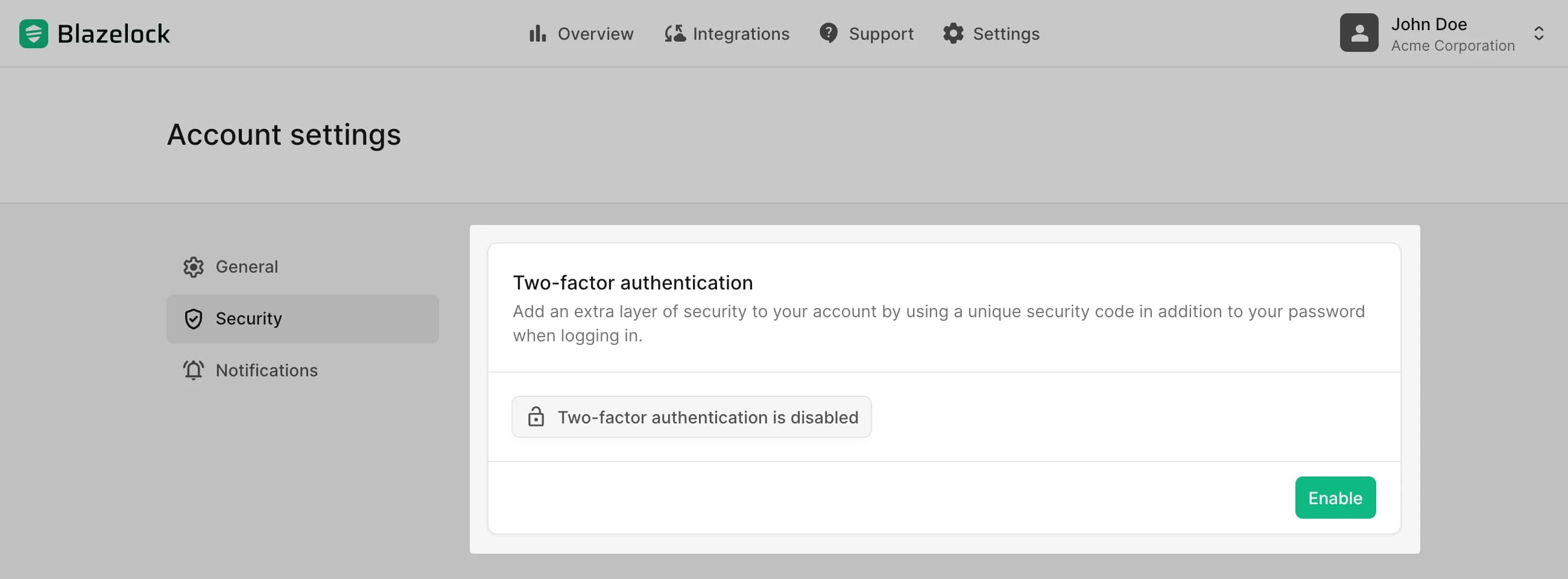
Open Account settings -> Security and enable Two-factor authentication.
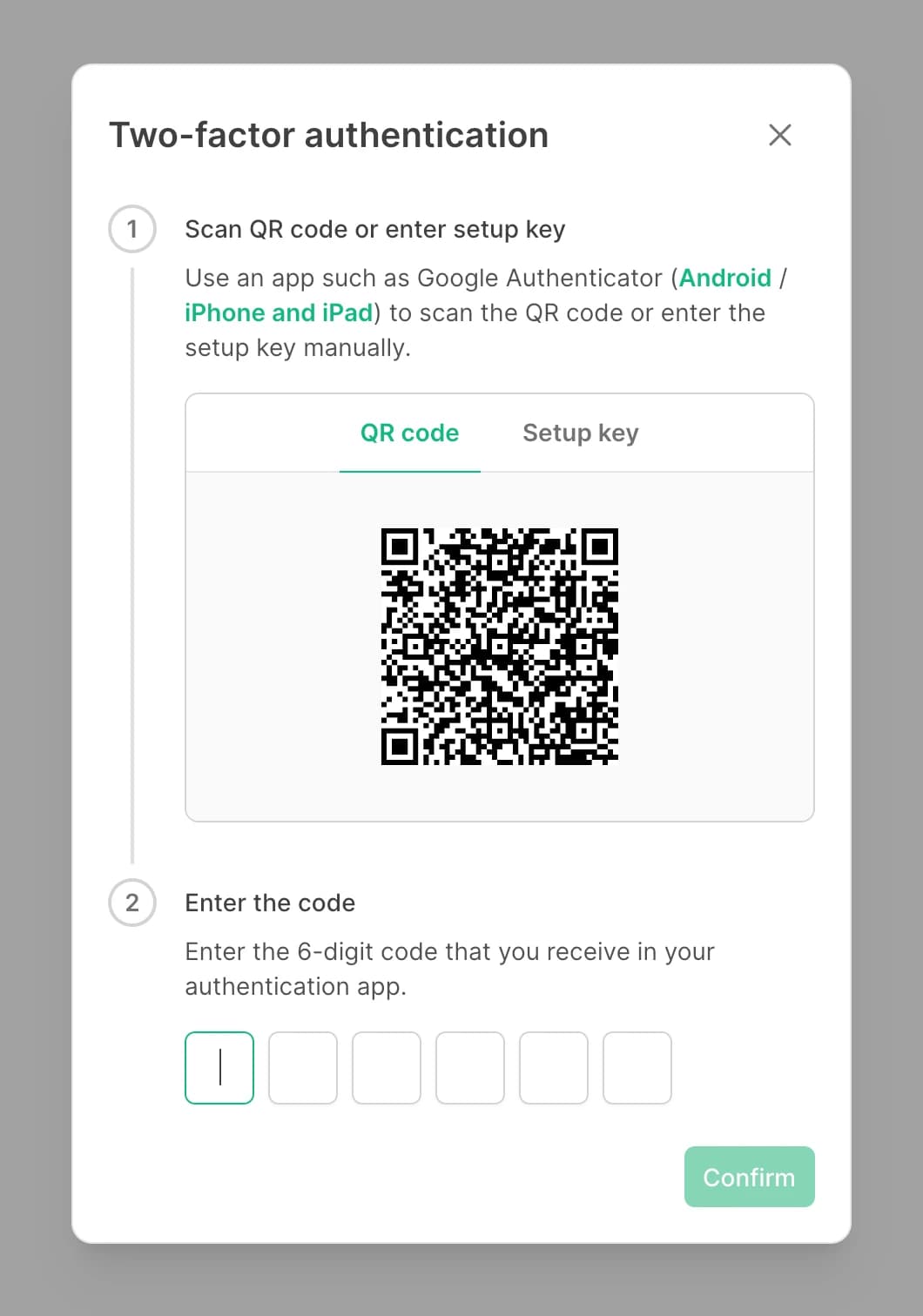
Register the authenticator by scanning the QR code or by entering the setup key manually in your app. If you need help setting up Google Authenticator, refer to the official Google Authenticator setup guide.
Enter the current 6-digit code from the authenticator app to confirm the setup.
Store the generated recovery codes in a secure location. You can copy them or download them as a text file during setup.
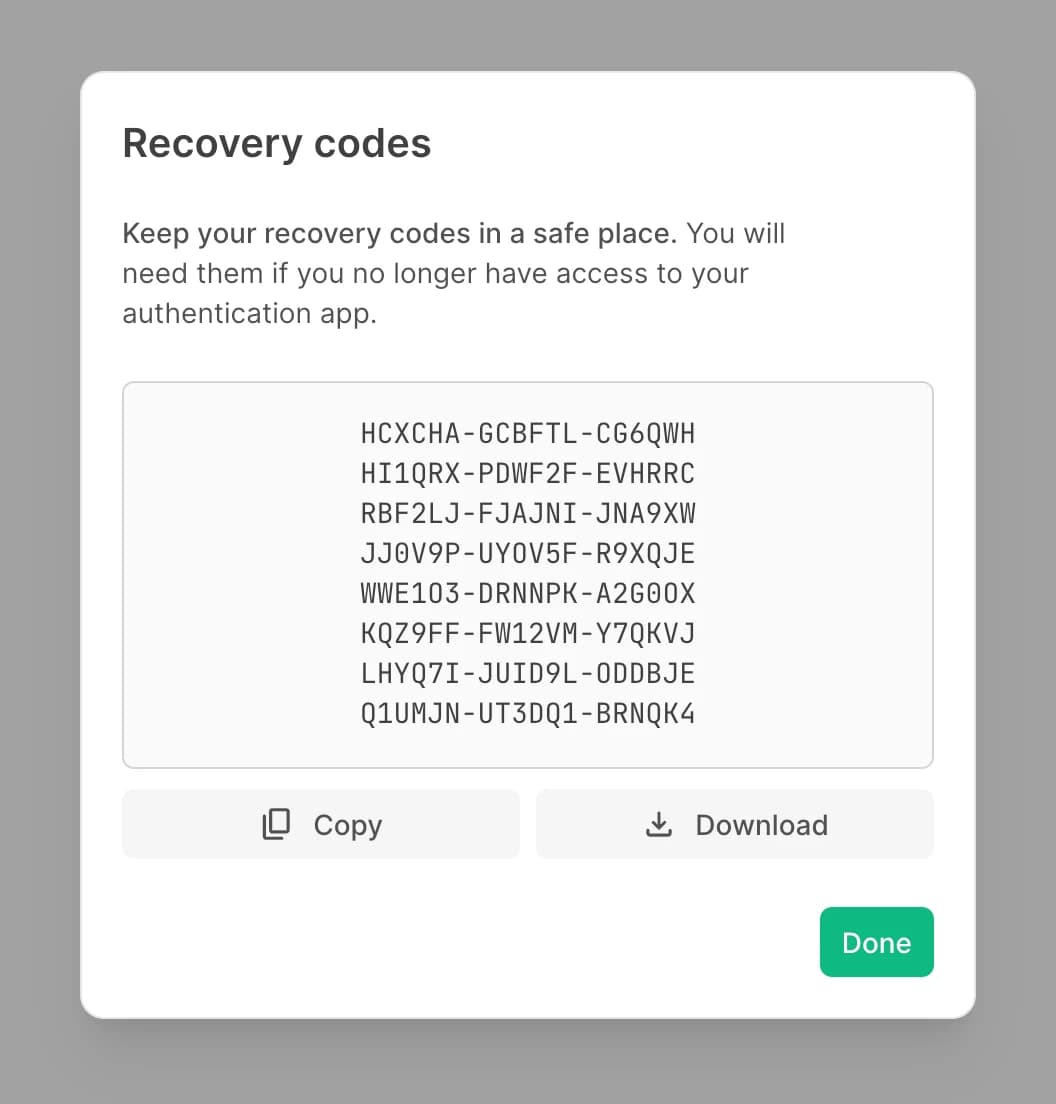
Store recovery codes securely
Recovery codes are intended for emergency access when your authenticator app is unavailable. Store them outside the authenticator app in a secure location that your organization can govern appropriately.
Sign in with two-factor authentication
When 2FA is enabled, the login flow changes:
Enter your email address and password on the login page.
On the next screen, enter the 6-digit code from your authenticator app.
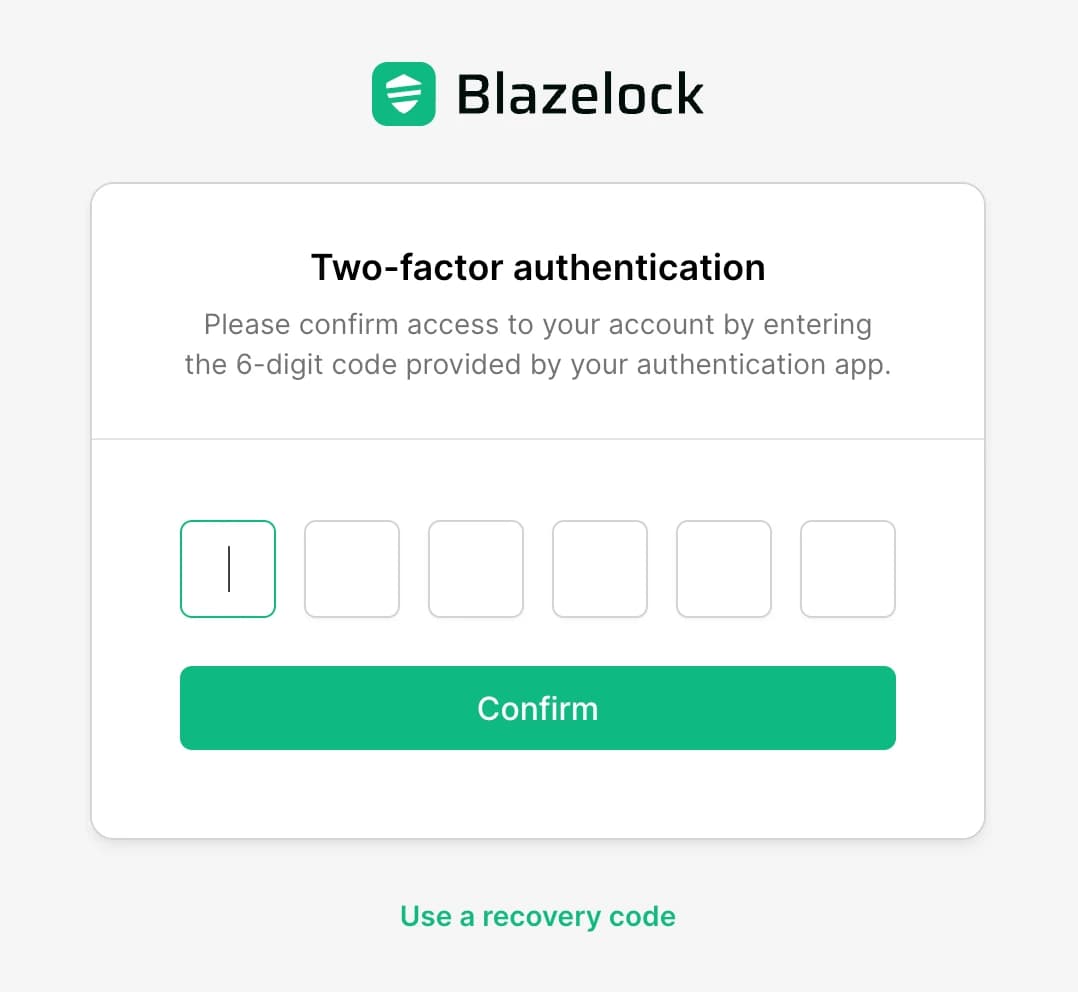
Use a recovery code
If you cannot access your authenticator app during login, you can use one of your recovery codes instead.
On the two-factor challenge screen, choose Use a recovery code instead.
Enter one of your unused recovery codes to complete the login.
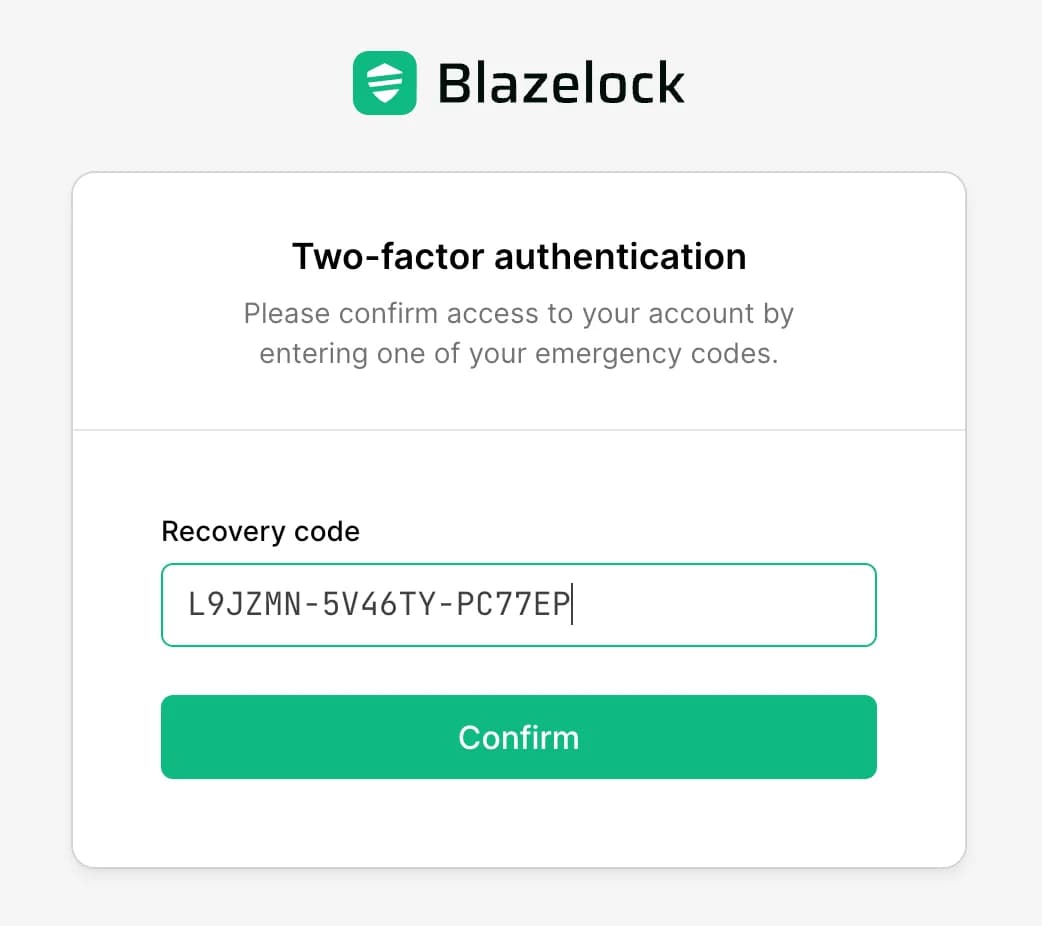
Each recovery code can be used only once. When a recovery code is used, it is removed from your remaining code list and Blazelock sends a security notification by email.
Disable two-factor authentication
To disable 2FA, open Account settings -> Security -> Two-factor authentication and click Disable. In the confirmation dialog, enter your current password to complete the action. Blazelock sends a confirmation email after 2FA has been disabled.
Notifications
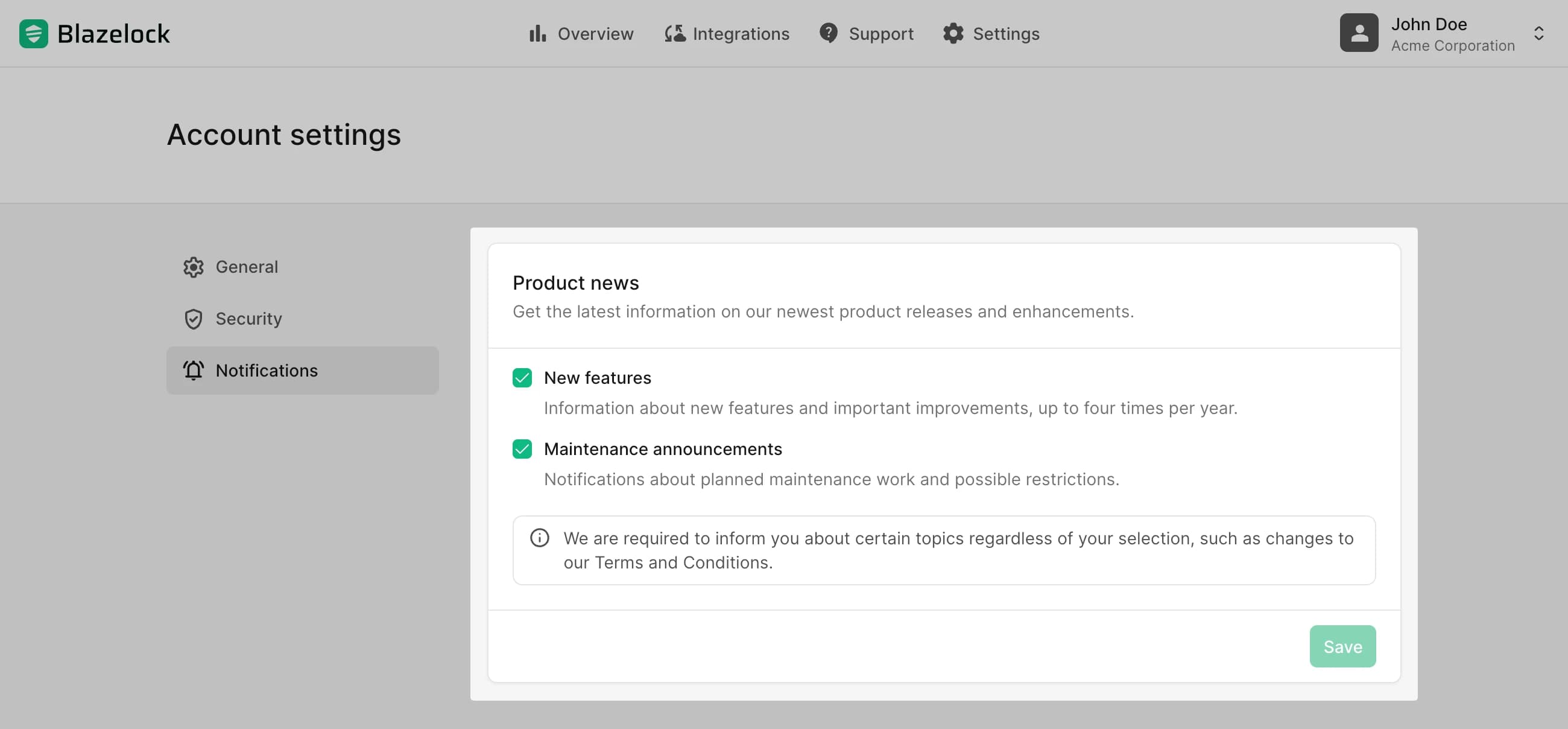
The Notifications area lets you choose which updates you want to receive by email.
You can manage:
- New features for major product improvements and releases
- Maintenance announcements for planned maintenance work and possible service impact
Certain mandatory account, legal, or security messages may still be sent even if you disable optional product news.
Forgot your password?
If you have forgotten your password, you can reset it as follows:
Open the login page and select Forgot password?
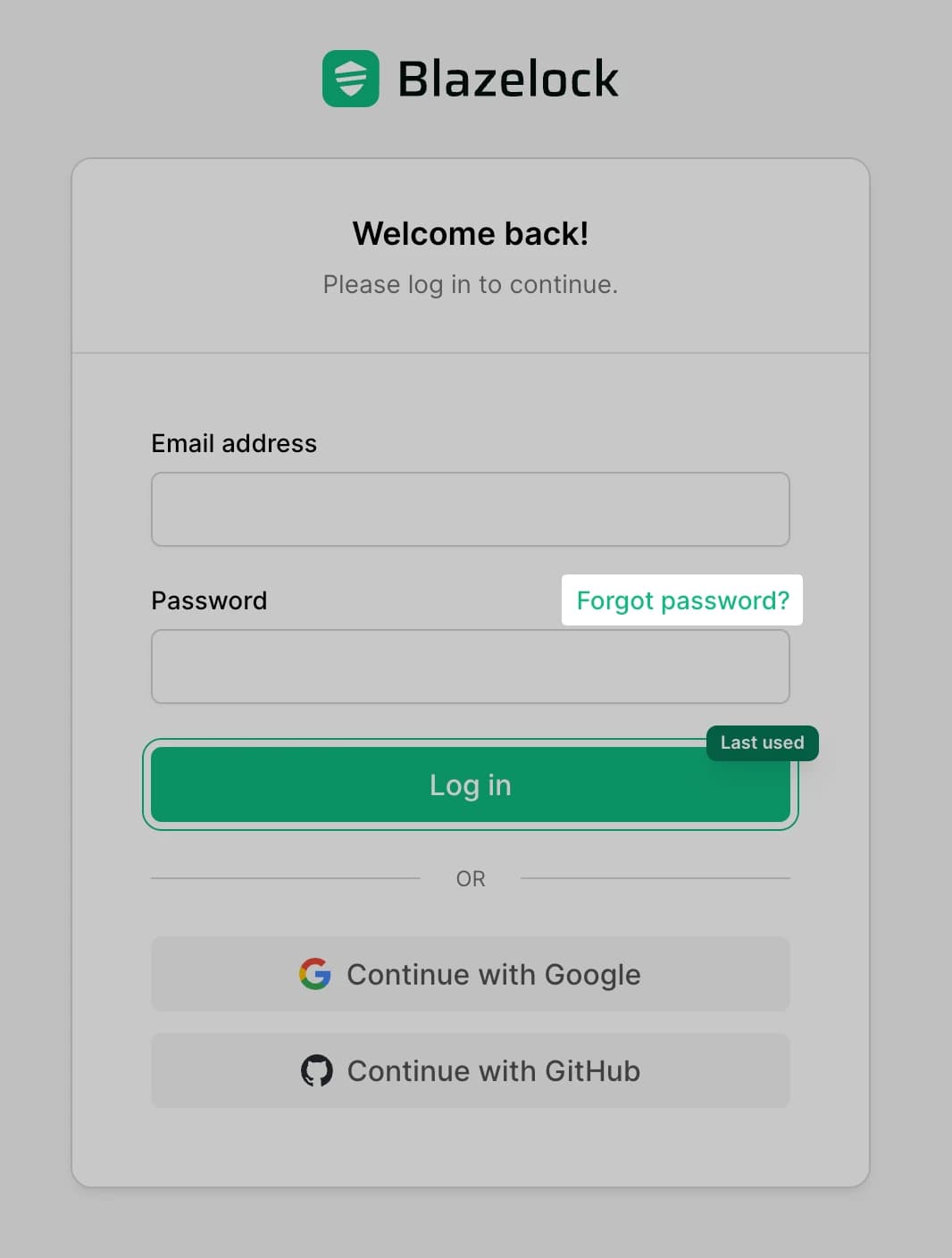
Enter your email address and submit the reset request.
Blazelock sends a password reset email if a user with that email address exists.
Open the reset link from the email and set a new password.
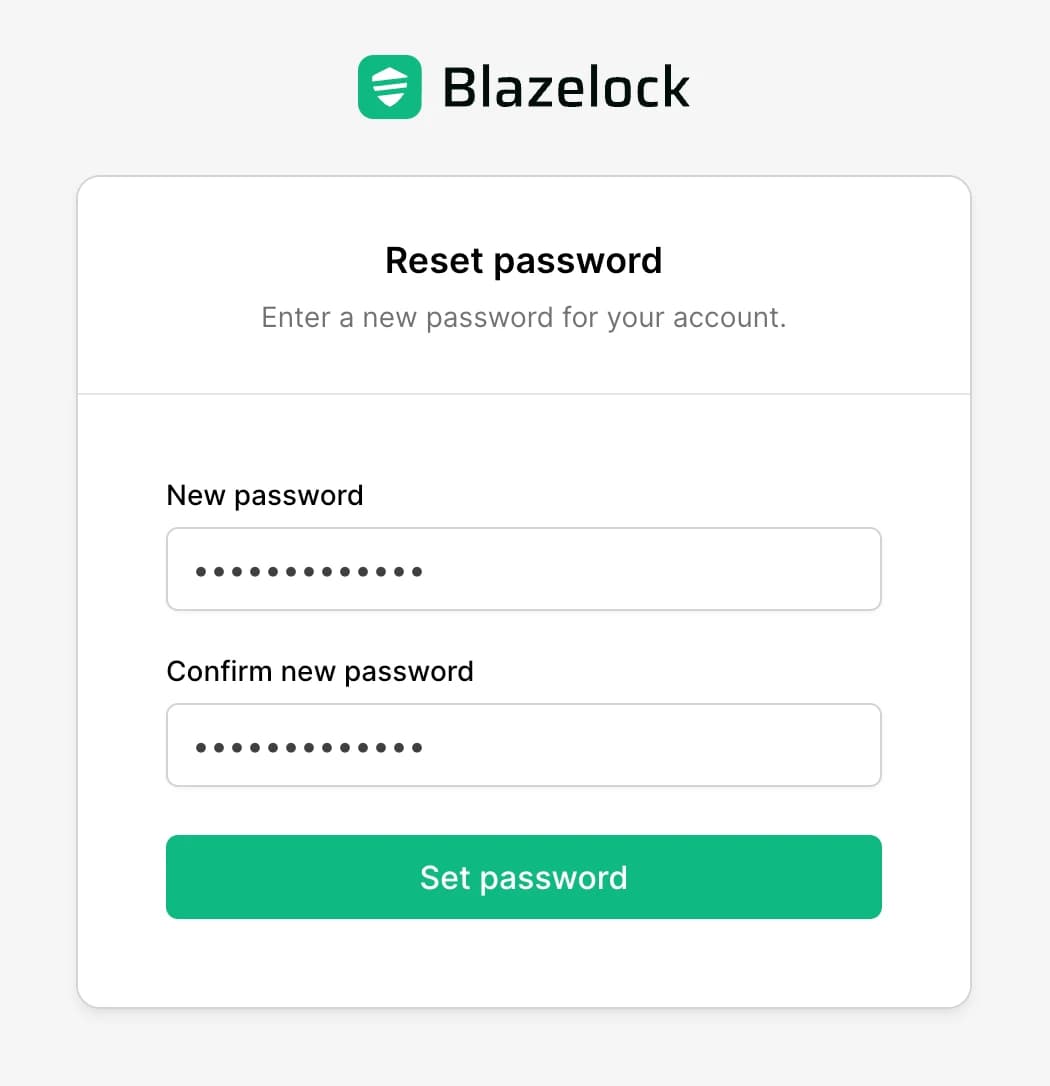
Return to the login page and sign in with the new password.
The reset link is only valid for 1 hour. If it expires, you need to request the password reset again.